
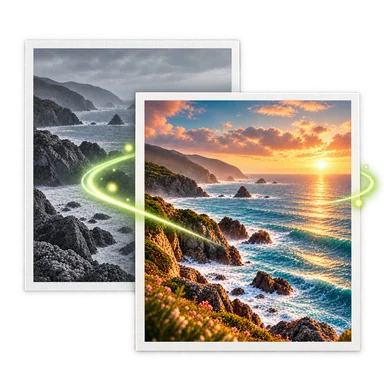
AI Image Expander for Wider or Taller Frames
An AI image expander adds newly generated content outside the original frame. Use it to make a landscape wider, turn a crop into a taller layout, or create copy space, while remembering that the added area is a plausible invention rather than recovered hidden pixels.
AI Image Expander Before and After


How to Use the AI Image Expander
- 01
Upload one source image above. Guest edits accept one PNG, JPEG, or WebP image up to 20 MB.
- 02
Choose the target aspect ratio and edit the prompt to describe what should continue beyond the frame. Mention the existing light, perspective, surfaces, and any empty area needed for text or layout.
- 03
Generate and inspect the join between original and new content. Check straight lines, repeating patterns, horizon level, subject anatomy, shadows, and whether the original crop changed unexpectedly.
When an AI Image Expander Is Useful
Adapt a photo for a wider banner
Extend the sides of a portrait or product image to fit a website banner. Ask for quiet negative space where a headline will sit and verify that the main subject was not distorted.
Create a vertical social layout
Add space above or below a landscape photo for a vertical post or story. Continue sky, floor, wall, or scenery instead of stretching the existing pixels.
Repair an overly tight crop
Give a person, product, or building more breathing room. The tool can invent a plausible continuation but cannot reveal the real scene that was outside the camera frame.
Make room for design copy
Extend a simpler part of the scene to hold a title or call to action. Keep the generated area visually calm and add final typography in a dedicated layout tool.
AI Image Expander Tips and Limits
Choose the final ratio first
Decide whether the output is for a banner, portrait post, square card, or print layout. The target ratio tells the editor how much space must be generated.
Describe continuity
Mention the direction of light, camera height, lens feel, horizon, surface, and recurring pattern. These cues help the new region connect more naturally to the source.
Protect the original subject
State that the existing person, product, text, or architecture should remain unchanged. Still compare the original region because generative output can modify it.
Know what expansion cannot do
AI outpainting predicts new pixels. It cannot recover a cropped hand, sign, face, or background exactly as it existed outside the captured image.
AI Image Expander FAQ
Does an AI image expander uncrop the original photo?
It creates a plausible continuation beyond the visible frame. It does not recover the actual pixels that were outside the original crop or camera view.
Can I expand only one side?
Choose a target ratio and describe where you need room, such as extra sky above or copy space on the right. The model controls the final composition, so inspect all edges.
Will the original part stay unchanged?
The prompt can ask for preservation, but exact pixel-level locking is not guaranteed. Compare the original area, especially faces, products, text, and straight lines.
Which images are easiest to expand?
Scenes with clear perspective and repeatable sky, wall, floor, or landscape often provide stronger cues. Crowded edges, cropped anatomy, complex text, and irregular patterns are harder.
What upload formats are available?
Guest edits accept one PNG, JPEG, or WebP image up to 20 MB. Ratio, model, resolution, and credit options appear in the workspace.