
H3 Image Generator
H3 Image Generator edits an uploaded photo with MiniMax H3 Image through Kie. Add one to three images, describe the exact change, choose 1K, 2K, or 4K, and download or continue editing the result. The Credit quote appears before submission.
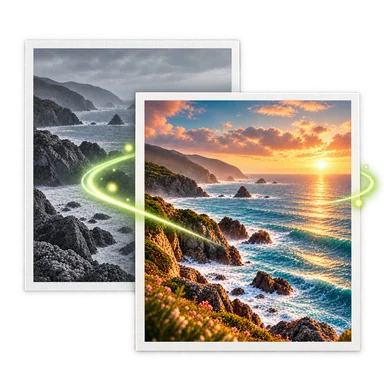
Image editing example


How to edit with H3
- 01
Upload one to three JPEG, PNG, or WebP images. In Compose mode, the images become <Picture 1>, <Picture 2>, and <Picture 3> in upload order.
- 02
Write the change and name what must stay the same. Choose 1K, 2K, or 4K, then review the Credit quote before generating.
- 03
Generate the edit, inspect faces, hands, and small text at full size, then download the PNG (1K/2K) or JPEG (4K), or continue editing from history.
What you can create
Portrait adjustments
Change the setting or wardrobe while asking H3 to preserve identity and expression.
Product scenes
Place an existing product in a new environment without changing its shape or label.
Multi-reference compositions
Use a room as <Picture 1> and furniture as <Picture 2>, then ask H3 to match perspective and sunlight in one result.
Illustration variations
Start with an illustration and change its colors or background while keeping its composition.
Prompt tips and limits
State the change first
Start with an action such as “remove the cup” or “change the setting to a rainy street.” Name one scene rather than stacking unrelated styles.
Protect the rest
Say “keep everything else unchanged” and name identity, lighting, or text that should remain.
Use reference order
Picture numbers follow the upload order. Compose mode uses all uploaded references in one Kie result.
Check small details
Inspect hands and dense small text at full size. Keep quoted text short. Negative prompts, seeds, and sampling steps are not exposed in this workspace.
What is MiniMax H3 Image?
MiniMax H3 Image is an image generation and editing model in the H3 family. This workspace sends uploaded photos to the MiniMax H3 image-edit endpoint through Kie. It is separate from H3 video and Pruna’s P-H3-Image open-weight release, so their checkpoints and hardware figures do not describe this hosted editor.
Download and local deployment
The H3 workspace above runs online and needs no download or GPU. To run the separate Pruna P-H3-Image release locally, choose a checkpoint on its ComfyUI model card, download the workflow and model files listed there, open the workflow in a current ComfyUI installation, select the matching weights, and load your reference image. The 4-bit checkpoint is about 20 GB and the full checkpoint about 55 GB; the model card reports about 21 GB peak VRAM for an 8 MP run with the 4-bit option. Confirm the exact file set and hardware requirement on the card before downloading.
For Python use, follow the Pruna model card’s Diffusers ModularPipeline example: install its listed dependencies, load the P-H3-Image checkpoint, pass the image and editing instruction, and save the result. Those open-weight steps do not install or change this hosted Kie integration.
12 image-edit prompts to copy
Each prompt assumes you upload <Picture 1> first. A prompt should state the edit, the scene, and what must remain unchanged. Short exact text is easier to check than a dense paragraph of lettering. Extra tags such as “8k” or “masterpiece” do not replace a specific instruction.
Rainy street
Edit <Picture 1> into a candid street photograph just after rain. Keep the cyclist, camera position, and street layout unchanged; add wet pavement reflections and soft morning light.
Natural portrait
Edit <Picture 1> as a natural window-light portrait. Preserve the person’s face, expression, hair, and pose. Replace only the background with a quiet room and keep realistic skin texture.
Café cleanup
Remove the extra cups and bags from the café table in <Picture 1>. Keep both people, their gestures, the original light, and the rest of the scene unchanged.
Day to night
Turn the street in <Picture 1> into a rainy night scene. Keep the buildings, framing, and people in the same positions; add warm window light and wet reflections.
Product backdrop
Place the perfume bottle from <Picture 1> on a dark walnut table with one folded linen cloth. Preserve the bottle shape, cap, label, and proportions exactly; change only the setting and lighting.
Food styling
Edit <Picture 1> into an overhead food photograph on a pale stone table. Keep the peaches and bowl of yogurt; remove the clutter and add one silver spoon. Use natural late-morning light.
Room composition
Use <Picture 1> as the room and place the chair from <Picture 2> beside the window. Keep the room geometry and window position unchanged. Match the chair’s scale, perspective, and sunlight.
Architecture cleanup
Remove the parked car from the library entrance in <Picture 1>. Rebuild the pavement and brickwork naturally. Keep the building, signs, people, and camera perspective unchanged.
Anime recolor
Change the courier’s raincoat in <Picture 1> to yellow. Preserve the character design, pose, hand-drawn linework, bridge, and stormy painted background.
Illustration variation
Edit <Picture 1> into a warm dawn palette. Keep the gardener, plant, balcony layout, simple graphic shapes, and paper texture unchanged.
Short poster text
Replace only the headline on the poster in <Picture 1> with the exact words "NIGHT MARKET". Keep the red lantern, dark blue background, typography style, and spacing unchanged. Add no other lettering.
Package label
Change only the tea tin label in <Picture 1> to read exactly "MORNING TEA". Preserve the tin shape, shelf, camera angle, and soft studio light. Add no other text.
Editing with multiple references
Upload the main scene first and a style or object reference second. For example, upload a room as <Picture 1> and a chair as <Picture 2>; ask “Place the chair from <Picture 2> beside the window in <Picture 1>. Match scale, perspective, and sunlight. Keep the room geometry unchanged.” One Compose request returns one result, while Batch edits each input separately and charges for each output. The Kie endpoint documents up to 16 references; this workbench intentionally accepts up to three.
Compare image-editing models
These are controls available in this workspace, not a same-prompt quality or speed test. All five run on hosted infrastructure, so no local VRAM is required here. Inspect actual results before choosing a model for delicate faces, hands, or dense small text.
| Model | Output options here | Input photos | Useful when |
|---|---|---|---|
| MiniMax H3 Image | 1K / 2K PNG; 4K JPEG | 1–3 | You want a standard PNG edit with ordered references. |
| Nano Banana 2 | 1K / 2K / 4K PNG; transparency option | 1–3 | You also need a transparent output option. |
| GPT Image 2 | 1K / 2K / 4K PNG; transparency option | 1–3 | You want to compare a second multi-reference editor. |
| Seedream 4.5 | 2K / 4K JPEG | 1–3 | You want a JPEG result at a higher size tier. |
| Grok Imagine Image 2.0 | Default-size JPEG | 1–3 | You want to try an alternative with fewer size controls. |
H3 Image FAQ
Is H3 Image free here?
This workspace uses site Credits. It shows the exact charge before you submit; available trial Credits follow the account rules on the pricing page.
Do I need a GPU?
No. Images are processed through the hosted Kie API. Local deployment is a separate workflow.
Can I use the output commercially?
Check the current MiniMax-H3-Image Community License and the Kie terms for your location and use. This page does not grant extra rights.
Is this the H3 video model or P-H3-Image?
This workspace uses MiniMax H3 Image through Kie. H3 video and Pruna P-H3-Image are related names with different services and requirements.
How many images and what sizes are supported?
This workspace accepts one to three input images. Output is PNG at 1K/2K and JPEG at 4K. The upstream API supports more references, but they are not available here.