
Remove Text from Image with AI
Remove text from image files you own or are allowed to edit. The tool generates new pixels where a caption, date, or temporary label appeared, so describe the text and its location, then compare the rebuilt texture, edges, and nearby subjects with the original.
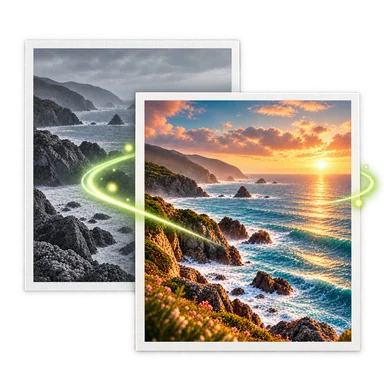
Remove Text from Image: Before and After


How to Remove Text from Image Files
- 01
Upload one image you have permission to edit. Guest edits accept one PNG, JPEG, or WebP image up to 20 MB.
- 02
Edit the visible prompt to identify the words, date, sign, or caption and its position. Describe the surface that should replace it, such as painted wall, sky, fabric, paper, or stone.
- 03
Generate and zoom into the repaired area. Check repeating patterns, gradients, object boundaries, faces, and nearby legitimate text. Refine the instruction if too much content changed.
When to Remove Text from Image Content
Clear your own date stamps
Remove a camera date or temporary timestamp from a personal photo. The corner may contain gradients, grass, or detailed texture, so inspect the fill at full resolution.
Update owned campaign artwork
Clear expired promotional copy from artwork you control before rebuilding the layout. Preserve logos and required legal text by naming exactly what should stay.
Clean labels from a reference photo
Remove a temporary note, caption, or annotation from an authorized reference image. Check that lines and objects beneath the label were reconstructed plausibly.
Prepare a clean background asset
Erase your own overlay text before adding new typography in a design tool. Keeping typography separate from the background gives you more control over spelling and alignment.
Text Removal Tips, Rights, and Limits
Name only the text you intend to clear
Quote the visible words when practical and describe their position. This reduces the chance that the editor removes a product label, street sign, or other text you meant to keep.
Describe the hidden surface
The original pixels behind the letters are unavailable. Telling the model that the area is brick, fabric, skin, sky, or a smooth gradient helps guide a plausible reconstruction.
Check high-detail regions
Small repeating textures, faces, hands, and object edges are harder to rebuild cleanly. A tighter description or a separate edit can make the result easier to review.
Respect ownership and attribution
Use this workflow only on images you own or are authorized to change. It is not provided for removing third-party watermarks, rights notices, signatures, or provenance marks.
Remove Text from Image FAQ
Can I remove a date stamp from a photo?
Yes, for a photo you are allowed to edit. Identify the date and its corner in the prompt, then check how the tool reconstructed the background underneath it.
Does the tool recover the original image behind the words?
No. The covered pixels are not recoverable from the visible image. AI predicts new content from the surrounding area, so the result should be treated as a generated reconstruction.
Can I remove a watermark or copyright notice?
This workflow is not intended for removing third-party watermarks, ownership marks, signatures, or rights notices. Edit only content you own or have permission to modify.
Why does texture look soft after text removal?
Letters can cover texture, edges, and shadows that the model must invent. Describe the underlying material and inspect the output at full size; complex regions may need another generation.
What files can I use?
Guest edits accept one PNG, JPEG, or WebP image up to 20 MB. Available options and credit cost are shown before generation.