
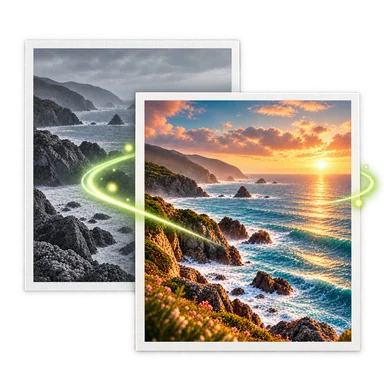
Background Remover for Clean, Transparent Cutouts
A background remover separates the main person, product, or object from everything behind it. Upload your image in the workspace above, keep the visible prompt focused on the subject, and inspect hair, glass, shadows, and narrow gaps before downloading the transparent result.
Background Remover Before and After


How to Use the Background Remover
- 01
Upload one source image in the workspace above. Guest edits accept one PNG, JPEG, or WebP image up to 20 MB.
- 02
Check the visible instruction and identify the subject that must remain. If the frame contains several people or products, name the main subject and mention important details such as hair, handles, or transparent edges.
- 03
Generate the cutout and inspect it against the checkerboard preview. Look for missing fine details, leftover background color, and clipped shadows. Refine the prompt and generate again when an edge needs more care.
When a Background Remover Helps
Product catalog cutouts
Separate a product from a cluttered table before placing it on a clean store layout. Review labels, handles, soft shadows, and reflective packaging before publishing the transparent PNG.
Profile and team portraits
Create a reusable portrait cutout for a profile, speaker card, or team page. Loose hair and clothing close to the original background deserve a full-size check.
Social and presentation graphics
A transparent subject can be placed over a brand color, slide, or thumbnail. Add the new backdrop in your layout tool after checking that the cutout has no visible color fringe.
Marketplace image preparation
Use the cutout as the starting point for a white or custom background. Confirm the marketplace rules separately, because this tool only prepares the subject image.
Background Remover Tips and Limits
Start with a distinct subject
Clear contrast between subject and surroundings usually produces a cleaner edge. Similar colors, motion blur, fog, and shallow depth of field can make the boundary ambiguous.
Inspect difficult materials
Hair, fur, lace, glass, smoke, and translucent fabric contain partial transparency. Zoom in and decide whether preserving texture or making a harder edge matters more for the final use.
Check the transparent file
The background-removal workflow requests a transparent PNG. Confirm that the downloaded result really contains transparency before placing it over another color or sending it to a client.
Choose the next background task
Use Background Changer when you want the editor to generate a finished setting. Use the background remover when you need a portable cutout for another design workflow.
Background Remover FAQ
Does the background remover download a transparent PNG?
The task requests a PNG with an alpha channel. Check the result preview and downloaded file because provider output can fail or contain an opaque background in an unsuccessful generation.
Can it keep hair and fur?
It can preserve many fine edges, but results depend on contrast, focus, and the original resolution. Inspect flyaway hair and fur at full size and try a more specific prompt if details disappear.
Can I replace the background after removing it?
Yes. Download the transparent cutout for another design, or open Background Changer when you want this editor to generate a new scene around the subject.
Which files can I upload?
Guest edits accept one PNG, JPEG, or WebP image up to 20 MB. The workspace shows the available model, ratio, and credit cost before generation.
Will it remove the subject’s original shadow?
The model decides which pixels belong to the subject, so a soft ground shadow may be kept, changed, or removed. State whether the shadow should remain and inspect the final edge before use.