
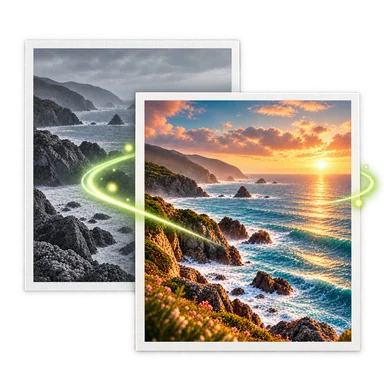
Change Photo Background with AI
Change photo background when the subject works but the setting does not. Upload the original above, describe the new environment and the details that must remain, then review whether the subject’s edges, scale, light direction, and shadows fit the generated scene.
Change Photo Background: Before and After


How to Change Photo Background in Three Steps
- 01
Upload one source image above. Guest edits accept one PNG, JPEG, or WebP image up to 20 MB.
- 02
Rewrite the visible prompt with a concrete setting, time of day, and mood. Also name what must stay unchanged, such as the person’s face, product shape, clothing, camera angle, or pose.
- 03
Generate and compare the subject with the original. Inspect hair, hands, product labels, reflections, light direction, and contact shadows. Adjust one instruction at a time when the setting or preservation is off.
When to Change Photo Background
Create a cleaner portrait setting
Move a usable portrait from a distracting room into a restrained studio or office scene. Keep the request specific enough that the new environment supports the person instead of competing with them.
Build product lifestyle scenes
Place a product in a kitchen, bathroom, desk, or outdoor context while asking the editor to preserve its proportions, packaging, and label. Verify every brand detail before commercial use.
Prepare seasonal campaign variants
Try a spring, holiday, or evening setting without reshooting the subject. Generate separate versions and compare color spill, shadows, and crop consistency across the campaign.
Adapt one photo to several channels
Create a restrained backdrop for a marketplace image and a richer scene for social content. Choose the target aspect ratio before generating so the background leaves usable space for each format.
Tips and Limits When You Change Photo Background
Describe a scene, not a vague mood
Name the location, surfaces, lighting, and depth you need. ‘Warm studio with a pale plaster wall and soft window light from the left’ gives the model more useful direction than ‘make it premium.’
Protect identity and product details
List the face, pose, product silhouette, label, or clothing that should stay. Generative edits can still alter them, so the result must be checked against the source.
Match light and contact
A convincing replacement needs compatible light direction, color temperature, perspective, and a believable point where the subject touches the floor or surface.
Expect trouble around glass and reflections
Transparent objects, mirrors, shiny packaging, and loose hair reveal the original environment. These areas may need a refined prompt or another generation.
Change Photo Background FAQ
Can I write my own background description?
Yes. The prompt is visible and editable. Describe the setting, lighting, palette, and any empty space you need, then state which subject details must remain.
Can the subject stay exactly the same?
The uploaded image guides the edit, but exact pixel-level preservation is not guaranteed. Compare faces, hands, text, labels, patterns, and proportions before using the result.
Should I remove the old background first?
No. This task can replace the setting in one generation. Use Background Remover first only when you specifically need a separate transparent cutout.
Which image formats are supported?
Guest edits accept one PNG, JPEG, or WebP image up to 20 MB. Current model and credit choices appear in the workspace.
Can I make a plain white or solid-color background?
Yes. Ask for an evenly lit solid background and specify the color. Inspect the boundary and any ground shadow, especially when the image must meet a marketplace standard.