
GPT Image 2.5 Flare Image Editor
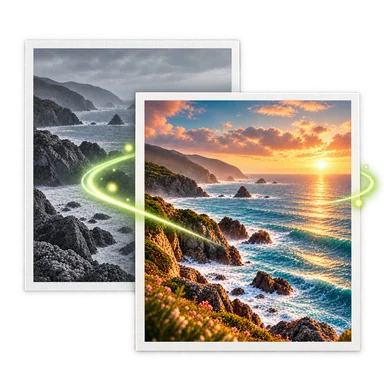
The GPT Image 2.5 Flare editor above starts with the model already selected for compatible photo edits. Upload a source image, describe the change and what must stay, then check the available output settings and live credit quote before generating. Review the finished image closely; this page's example is an illustration, not a verified Flare output.
GPT Image 2.5 Flare Editor: Before and After


How to Use GPT Image 2.5 Flare for Photo Editing
- 01
Upload a source image above. Guest edits accept one PNG, JPEG, or WebP image up to 20 MB. Signed-in editors can use up to three ordered images when the selected task supports them.
- 02
Keep GPT Image 2.5 Flare selected. Choose from the resolutions and ratios offered by the current editor, then name one change and the details to preserve. For a transparent cutout, use the Background Remover task.
- 03
Read the credit quote, generate, and compare the result with your source. Inspect faces, product shapes, small text and edges at full size before downloading or revising your instruction.
GPT Image 2.5 Flare Editing Workflows
Product scene changes
Ask for a different background or light around a product while naming its color, shape and parts to keep. Check packaging and shadows before using the result in a listing.
Portrait lighting
Adjust a portrait's mood with a short lighting instruction. Compare the face, hairline, hands and clothing with the original before sharing it.
Transparent cutouts
The Background Remover task can use GPT Image 2.5 Flare for an alpha-channel PNG. Inspect fine edges and confirm actual transparency in the downloaded file.
Reference-led compositions
When the selected task supports multiple images, provide up to three ordered references and state which object or visual detail each one contributes. Check for unwanted blending.
GPT Image 2.5 Flare Settings and Limits
Use the right task
This page starts with general image-to-image editing. Open a focused tool when you need background removal, object removal or expansion; task compatibility determines the available models.
Write preservation details
Name the product geometry, pose, colors or composition that should remain. A generated edit may still change them, so verify the output against the source.
Check text and transparency
Small lettering and logos can drift. Transparent output is available only through compatible tasks and must be checked at the edges before use.
Use current settings and prices
The workspace shows the currently available ratio, resolution, output mode and credit quote. AI Photo Editor accesses GPT Image 2.5 Flare through Kie and is independent of OpenAI.
GPT Image 2.5 Flare Editor FAQ
Is GPT Image 2.5 Flare selected when I open this page?
Yes. The shared editor starts with GPT Image 2.5 Flare selected for image-to-image editing. You can change the model and review the available options before generating.
Can I remove a background with GPT Image 2.5 Flare?
Yes, where the Background Remover task offers it. That workflow requests a transparent PNG; inspect the result and downloaded file because transparency is an output property to verify.
Which resolution should I choose?
Choose from the resolutions shown in the editor for your task. Larger settings use more Credits; the current quote appears before generation.
Does this page support more than one input image?
Signed-in editors can use up to three ordered images when the selected task supports them. Guest edits accept one PNG, JPEG, or WebP image up to 20 MB.
Is this an official OpenAI editor?
No. AI Photo Editor is an independent service that accesses the configured GPT Image 2.5 Flare model through Kie. The example on this page is illustrative and is not a measured model output.