
Remove Object from Photo with AI
Remove an object from a photo by telling the editor exactly what should disappear. Upload your image in the workspace above, adjust the visible prompt, then inspect the rebuilt background before downloading. Detailed patterns and overlapping subjects may need another edit.
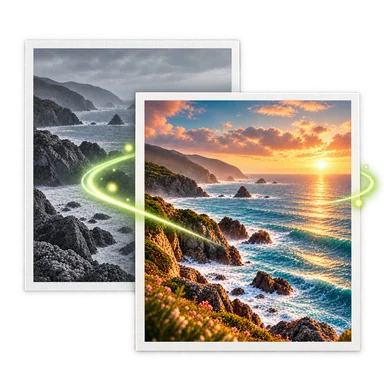
Remove Object from Photo: Before and After


Remove Object from Photo in Three Steps
- 01
Upload the original photo in the workspace above. Guest edits accept one PNG, JPEG, or WebP image up to 20 MB.
- 02
Edit the visible prompt to name the unwanted object and its position. For example: remove the orange cone in the center, keep the stone buildings and wall, and rebuild the cobblestone naturally.
- 03
Generate, then compare the edited area with the original. Check nearby edges, shadows, people, and repeated textures. Refine the prompt and try again if an important detail changed; download when the result works for you.
When to Remove Objects from Photos
Clean up travel photos
A cone, bin, or sign near the edge of a street scene can distract from the place you photographed. Describe the object and its location, then examine walls and paving lines after removal.
Remove clutter around a product
Clear a stray prop beside a product while asking the editor to preserve the product shape, label, and shadow. Review those details closely before using the edited image in a listing.
Simplify a room or property photo
Remove a loose cable or small temporary item from a room photo. Straight edges, tile joints, and reflections can reveal an imperfect reconstruction, so inspect them at full size.
Reduce background distractions in portraits
Ask the editor to remove a distant object or passerby while keeping the main person unchanged. If the unwanted element overlaps hair, clothing, or a face, expect to review and possibly repeat the edit.
Tips and Limits for a Cleaner Removal
Name one clear target
Include the object's color, position, and nearby landmark. A prompt such as ‘remove the orange cone at the center of the street’ is clearer than ‘clean this photo’ when several objects are visible.
Say what must stay
Mention the person, product, or background feature you want to preserve. The model can still change nearby details, so compare the result with the original rather than assuming pixel-perfect preservation.
Check texture, shadow, and perspective
Object removal generates new pixels where the original scene was hidden. Repeating bricks, pavement lines, glass, and cast shadows are the places most likely to need another pass.
Use the right task for a wider change
This workflow removes a described distraction. For a new setting use Background Changer; for space beyond the photo's edge use AI Image Expander. Neither task can recover pixels that were never captured.
Object Removal FAQ
Can I remove several objects from the same photo?
Yes, you can describe multiple unwanted objects in the prompt. Name each target precisely and check the result; separate edits can be easier to judge when objects sit in different parts of the image.
Do I need to paint over the object with a brush?
No. This editor uses an editable text prompt. Identify the object and its position in words, and specify any nearby details that should remain.
Will the background match the original exactly?
The hidden area is reconstructed by AI, so it is an estimate rather than recovered original pixels. Zoom in on patterns, shadows, and edges before downloading.
What images can I upload for object removal?
Guest edits accept one PNG, JPEG, or WebP image up to 20 MB. The download format follows the generated result shown in the editor.
Can I try object removal without signing in?
Guest edits accept one PNG, JPEG, or WebP image up to 20 MB. The workspace shows eligibility and required Credits before generation; sign in when you need more edits.