
Nano Banana Image Editor with Nano Banana 2
This Nano Banana image editor opens the shared workspace with Nano Banana 2 selected for compatible image editing tasks. Upload one reference or use up to three ordered inputs when signed in, explain the role of each image, and review preservation rather than treating any generated result as exact.
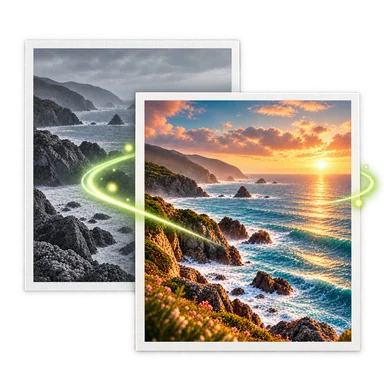
Nano Banana Image Editor: Before and After


How to Use the Nano Banana Image Editor
- 01
Upload one source image above. Guest edits accept one PNG, JPEG, or WebP image up to 20 MB. Signed-in editors can use up to three ordered images when the selected task supports them.
- 02
Keep Nano Banana 2 selected, choose an available ratio and resolution, and write a concrete edit. For several references, say which image supplies the subject, product, style, color, or setting.
- 03
Generate and compare every important detail with the inputs. Inspect identity, hands, product shape, text, logos, lighting, and composition; continue from the best version when one focused correction is needed.
Nano Banana Image Editor Use Cases
Prompt-led photo changes
Describe a background, color, prop, lighting, or style change without painting a mask. State what must remain so the result has a clear review checklist.
Multi-reference compositions
Use up to three ordered images in signed-in multi-image mode when the workflow supports them. Assign each reference a role instead of asking for a vague blend.
Product and campaign variations
Explore alternative surfaces, environments, and art direction from an existing product photo. Check packaging, labels, proportions, and usage rights before publishing.
Style and atmosphere studies
Test a visual treatment or time-of-day shift while keeping the source composition recognizable. Compare small structures and faces because style changes can regenerate them.
Nano Banana Image Editor Tips and Limits
Use the current model label
The workspace currently selects Nano Banana 2. Model availability, ratios, resolutions, certifications, and credit costs come from the live capability catalog and can change.
Give ordered inputs explicit jobs
Write ‘use image one for the subject and image two for the lighting style’ rather than assuming the model will interpret the input order as you intended.
Check consistency instead of assuming it
Prompt-based editing can alter identity, anatomy, lettering, product details, and composition. Review at full size and repeat with a narrower correction when needed.
Understand the integration
AI Photo Editor accesses the configured Nano Banana 2 model through Kie. Nano Banana refers to Google’s Gemini image model family; this site is an independent product and is not an official Google service.
Nano Banana Image Editor FAQ
Which Nano Banana model does this page select?
The current workspace selects Nano Banana 2. The exact provider model, supported ratios, resolutions, and certification status are controlled by the project’s current capability catalog.
Can I use several reference images?
Signed-in editors can use up to three ordered images when the selected task supports them. Guest edits accept one PNG, JPEG, or WebP image up to 20 MB.
Is this an official Google or Gemini product?
No. AI Photo Editor is an independent product. It accesses Nano Banana 2 through Kie; Nano Banana is associated with Google’s Gemini image model family.
Does the model preserve faces and products exactly?
Exact preservation is not guaranteed. Write the constraints clearly and compare faces, hands, labels, shape, texture, and camera position with every source image.
What does a Nano Banana edit cost?
The workspace shows the current credit quote before generation. Cost depends on the active model configuration, resolution, and number of outputs; use the displayed quote as the source of truth.