
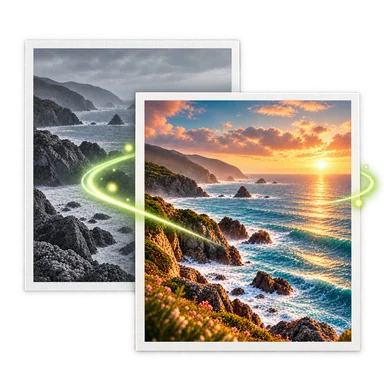
Image to Image AI Editor
Image to image AI uses your uploaded picture as the visual starting point instead of generating from words alone. Describe the change and the parts that must stay recognizable, then compare composition, identity, text, and small details before accepting the result.
Image to Image AI Before and After


How to Use Image to Image AI
- 01
Upload one source image above. Guest edits accept one PNG, JPEG, or WebP image up to 20 MB. Signed-in editors can use up to three ordered images when the selected task supports them.
- 02
Write the desired transformation and a preservation list. For example: change daylight to blue hour, keep the road layout, bicycle, building shapes, camera position, and main colors recognizable.
- 03
Choose an available model, ratio, and resolution, then generate. Compare the result with every input and revise one part of the prompt at a time when identity, layout, or detail drifts.
Useful Image to Image AI Workflows
Change lighting and time of day
Turn daylight into golden hour, evening, or soft overcast light while retaining the scene layout. Reflections and shadow directions need close review.
Explore a visual style
Translate a photo into an illustration, editorial, film, or material style. Describe texture and palette while stating which pose, objects, and composition should remain legible.
Create product scene variations
Use a product image as reference for different surfaces, props, or campaign moods. Verify labels, dimensions, and brand features because generative edits can alter them.
Combine ordered references
Signed-in multi-image work can use up to three ordered inputs when the selected model and mode support them. Explain the role of each reference instead of expecting the model to infer it.
Image to Image AI Prompt Tips and Limits
Separate changes from constraints
Write what should change first, then list the face, pose, composition, color, product, or camera view that must remain. This makes the result easier to judge.
Give each reference a role
For multiple inputs, say which image provides the subject, style, color, or setting. Input order matters in the workspace, but clear language is still required.
Expect some regeneration
The model creates a new image rather than modifying fixed pixels. Faces, hands, logos, small text, and fine patterns can drift even when the prompt asks to preserve them.
Iterate with one correction
When a result is close, correct one problem at a time and use the chosen version as the next base. Large prompt rewrites make it harder to know which instruction caused a change.
Image to Image AI FAQ
How is image to image AI different from text to image?
Image to image AI starts from one or more uploaded visual references plus a prompt. Text to image begins mainly from written instructions, so it has no source composition to preserve.
Can I keep the same person or product?
You can ask the editor to preserve identity and product details, but exact consistency is not guaranteed. Compare faces, hands, labels, shapes, and proportions with the source.
Can I upload more than one reference image?
Signed-in editors can use up to three ordered images when the selected task supports them. Guest edits accept one PNG, JPEG, or WebP image up to 20 MB.
Which model should I choose?
Guests and signed-in users can choose the models currently listed when they have enough credits. Compare them on your own source; available ratios, resolutions, certification status, and costs come from the current capability catalog.
Does changing the aspect ratio crop the source?
The chosen ratio guides the generated output and may recompose or extend the scene. Review the preview rather than assuming the source framing will remain pixel-for-pixel identical.