
Grok Imagine Image 2.0 Image Editor
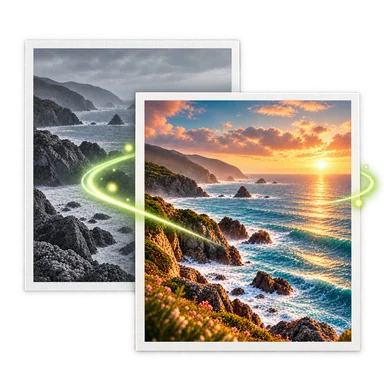
The Grok Imagine Image 2.0 image editor above opens the shared photo workspace with this model selected for compatible edits. Add a source image, describe what to change and what to preserve, and check the live credit quote before generating. The before-and-after example below is illustrative, not a verified Grok output.
Grok Imagine Image 2.0: Before and After Example


How to Edit Photos with Grok Imagine Image 2.0
- 01
Upload an image above. Guest edits accept one PNG, JPEG, or WebP image up to 20 MB. New guests receive 2 free Credits, below the 6 Credits needed for one Grok output. Sign in and check your balance before generating. Signed-in editors can use up to three ordered images when the selected task supports them.
- 02
Keep Grok Imagine Image 2.0 selected, choose the available standard quality and one of the displayed ratios, then describe the change and the details to keep. This model does not offer 1K, 2K or 4K selection here.
- 03
Check the live credit quote before generating. When the task completes, compare the saved result with the source and inspect small details before downloading.
Grok Imagine Image 2.0 Photo Editing Ideas
Change a product setting
Start with a clear product photo and describe a new wall, surface or lighting direction. Check packaging and object shape against the source.
Restyle a room photo
Use an existing interior photo and request a different atmosphere while naming furniture, windows and other details that must remain.
Clean up visual distractions
Identify a specific unwanted object in the photo and describe the surrounding surface that should be reconstructed. Inspect edges and repeated textures afterward.
Try another framing
For a compatible expansion task, describe what should appear beyond the original frame and choose one of the ratios currently offered in the workspace.
Settings and Limits for Grok Imagine Image 2.0
Use the standard quality option
This Kie Image Edit integration exposes one standard quality setting and the ratios shown above. It does not provide separate 1K, 2K or 4K controls.
Keep transparency tasks separate
Grok is offered for ordinary image edits, not a transparent Background Remover result. Choose a compatible model when you need a cutout.
Name details to preserve
Describe the subject, layout and details that must stay unchanged. Inspect text, faces, product shapes and edges in the actual result rather than assuming perfect preservation.
Check provider availability
AI Photo Editor connects to xAI’s Grok Imagine Image 2.0 through Kie and is an independent service. Provider availability can change; check the current task response rather than treating the illustrative example as a live model result.
Grok Imagine Image 2.0 Editor FAQ
Is Grok Imagine Image 2.0 selected on this page?
Yes. This page opens the shared photo workspace with Grok Imagine Image 2.0 as the preset. Check the model selector and current quote before submitting.
Can I choose 1K, 2K or 4K?
No. This integration presents one standard quality option and the ratios currently shown in the editor; it does not offer a separate resolution setting.
Can this model remove a background to transparency?
No. The Grok option is for ordinary opaque edits. For a transparent cutout, open Background Remover and choose a compatible model.
How many images and Credits does an edit use?
Guest edits accept one PNG, JPEG, or WebP image up to 20 MB. A new guest’s 2 free Credits do not cover the 6-Credit Grok edit. Sign in and check your balance before generating. Signed-in editors can use up to three ordered images when the selected task supports them.
Is the example an actual Grok result?
No. The before-and-after pair is an original illustration, not a verified Grok output. Review the image returned by your own task to judge the actual result.